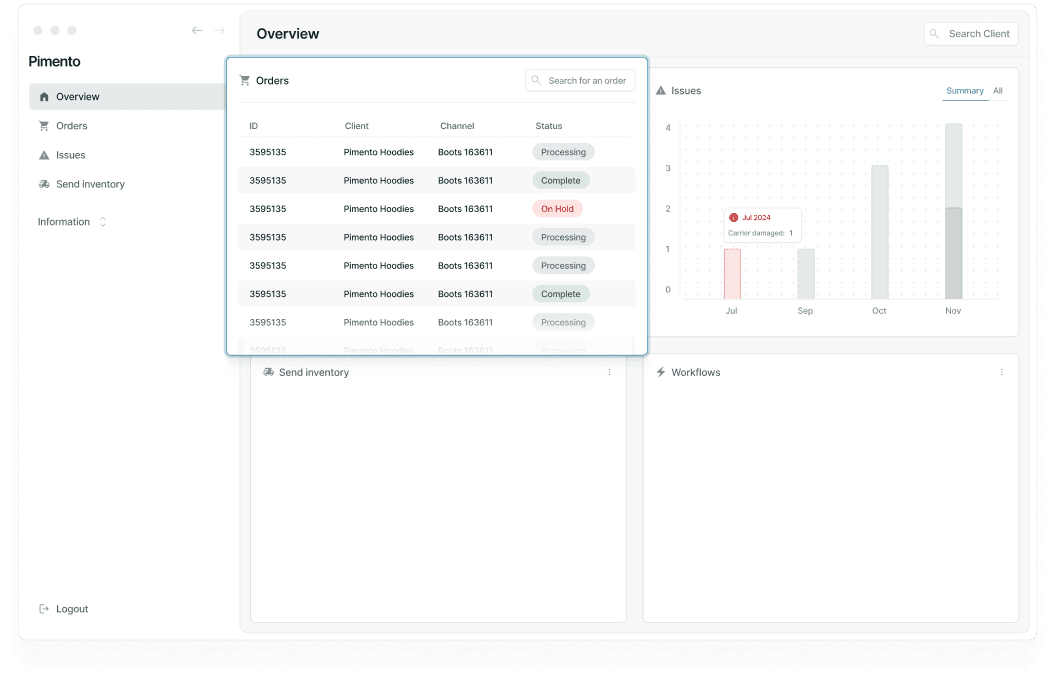
Send Inventory List Overview (How to Use the Send Inventory List)
Navigating the Send Inventory Page
The Send Inventory List is your main workspace for managing all outbound inventory shipments (ASNs).
From here, you can:
• View all ASNs
• Track shipment status
• Filter and search shipments
• Access individual ASN details
You can access this page via Send Inventory → List
List View Structure
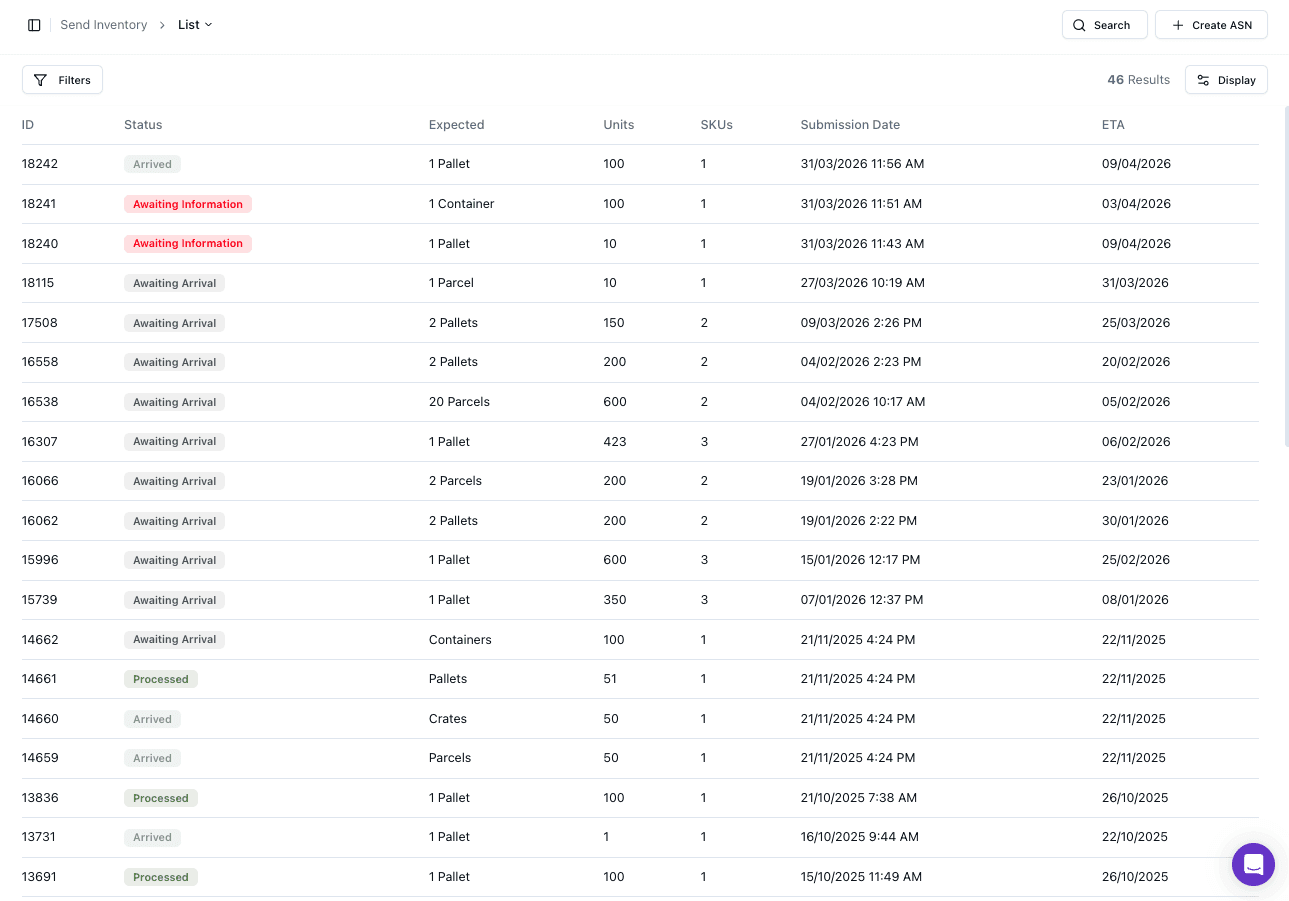
The table displays all ASNs in a structured list.
Key fields include:
• ID
• Status
• Expected (shipment type)
• Units
• SKUs
• Submission Date
• ETA
This provides a clear overview of all incoming shipments.
Searching and Filtering
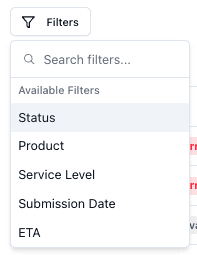
You can filter ASNs using the Filters option.
Available filters include:
• Status
• Product
• Service Level
• Submission Date
• ETA
This helps you quickly locate specific shipments or identify delays.
Display Options
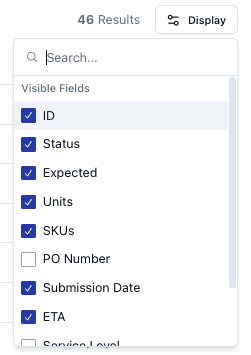
You can customise the table using the Display menu.
This allows you to:
• Show or hide fields
• Adjust visible data (e.g. PO Number, Service Level)
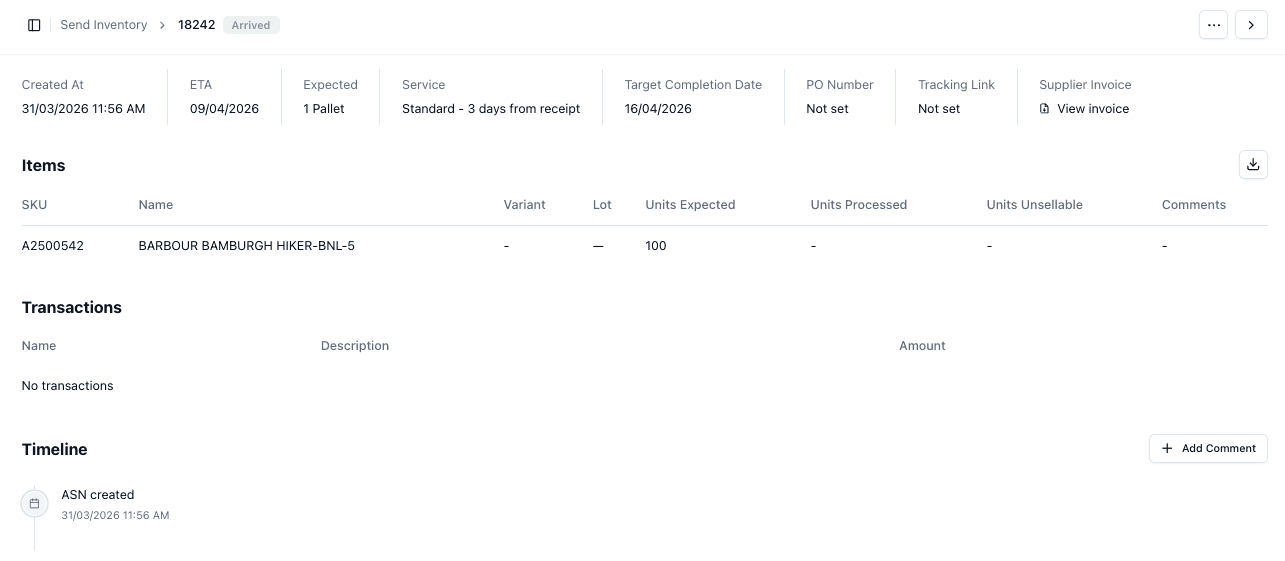
Accessing Individual ASNs
Clicking into an ASN opens the detailed view.
From here, you can:
• View shipment details
• Track items and quantities
• Review timelines and activity
Important Notes
• The list reflects all ASNs across your account
• Filters and display settings help manage large volumes of shipments
• Status updates are critical for tracking progress
• Only visible data is included when exporting
FAQs
Can I filter by shipment status?
Yes — use the filters to view specific ASN statuses
Can I customise the table view?
Yes — use the Display menu to adjust visible fields