How to Create a Single Order
Overview
Creating a single order in Pimento allows you to manually input and process an order from start to finish.
This is typically used for:
• Manual orders
• Customer support cases
• Testing or internal orders
All orders follow the same structure:
General information
Shipping address
Items
Step 1: General Information
Enter the basic order details:
• Reference (required)
• Shipping method
• B2B toggle (if applicable)
• Purchase Order Number (if B2B is enabled)
• Customs value (required if shipping international)
• Tags (optional)
For more detail, see:
Understanding Shipping Methods
When to Use B2B Shipping
Customs Values Explained
Using Tags on Order
Step 2: Shipping Address
Enter the delivery details:
Name and company
Address lines
City, post-code, country
Contact details
Delivery notes
For more detail, see: Formatting Shipping Addresses Correctly
Step 3: Add Items
Add products and quantities to the order
Select product
Enter quantity
Add multiple items if needed
You can also upload items via CSV for bulk entry.
For more detail, see:
Adding Products and Quantities to an Order
Uploading Order Items via CSV
Final Step: Submit Order
Once all required fields are completed:
Click Submit order
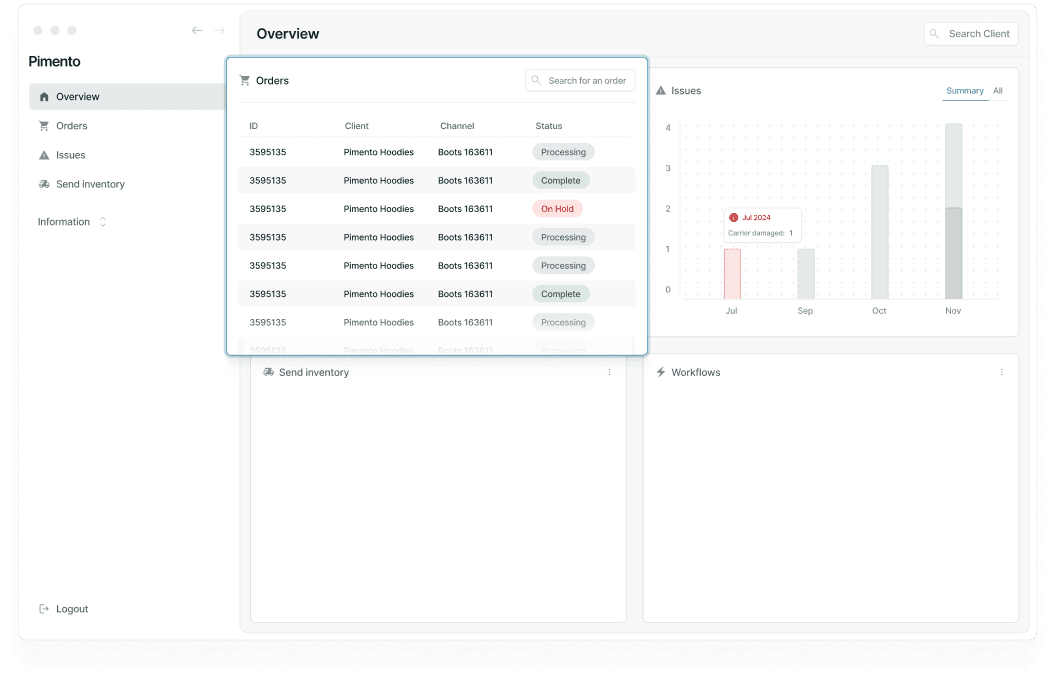
The order will be created and appear in the Orders page
It will enter the fulfillment flow (typically Processing)
Important Notes
Missing or invalid data may place the order On Hold
B2B orders require additional fields (e.g. PO number)
Ensure all required fields are completed before submitting