Creating Orders (What Happens When You Create an Order)
What Happens When You Create an Order?
When you create an order in Pimento, it is added to the Orders system and begins the fulfilment process.
This can happen in two ways:
• Orders are imported automatically from connected channels (e.g. Shopify, TikTok, eBay)
• Orders are created manually within Pimento
Once an order is created, Pimento will:
• Assign it an order ID
• Capture all order details (items, address, shipping method, etc.)
• Set an initial status (typically Processing)
• Make the order available for fulfilment workflows
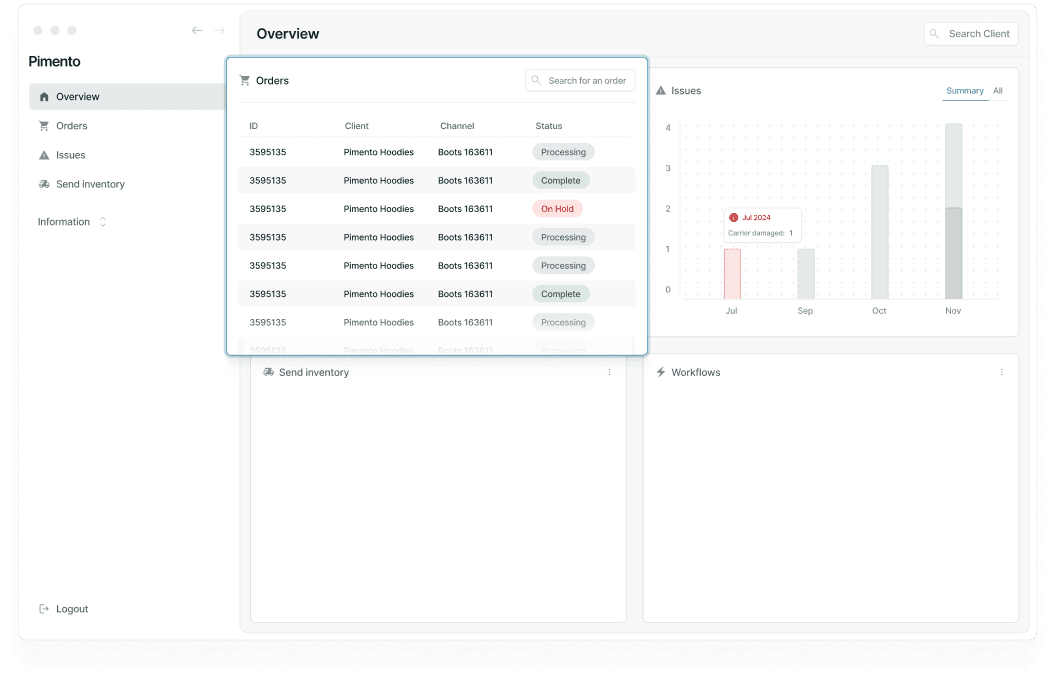
The order will then appear on the Orders page, where it can be reviewed, filtered, and managed.
What Happens Next?
After creation, the order will move through the fulfillment process:
• Processing → Order is ready to be worked on
• Picking → Items are being picked
• Picked → Picking is complete and the order is ready for packing
• Packed → The Order has been packed but cannot yet be shipped (e.g. due to a shipping issue or quality control check)
• Shipped → Order has been dispatched
If there are any issues, the order may be placed On Hold until resolved.
If no issues are detected, the order will continue through this flow automatically.
Key Information Captured at Order Creation
When an order is created, the following information is required:
• Customer or delivery address
• Items and quantities
• Shipping method
• Any relevant references (e.g. PO number for B2B orders)
Missing or incorrect information may cause the order to be placed On Hold.
Creating Single Orders
A single order is created individually, either manually or via a connected channel.
This is typically used for:
• Standard customer orders
• One-off manual entries
• Testing or support cases
Single orders allow you to: • Enter and review all details manually • Make adjustments before processing • Handle orders on a case-by-case basis
Creating Bulk Orders
Bulk order creation allows you to create multiple orders at once.
This is typically done via:
• File upload (e.g. CSV)
• Channel imports
• Large-scale order ingestion
Bulk orders are useful when:
Processing large volumes of orders
Migrating or importing historical data
Managing high daily order throughput
Key Differences: Single vs Bulk Orders
Single Orders:
• Created one at a time
• More control over individual details
• Best for manual handling or low volume
Bulk Orders:
• Created in large volumes
• Faster for high-volume operations
• Less manual input per order
Both types of orders follow the same fulfillment process once created.
Important Notes
All orders, whether single or bulk, enter the same workflow after creation
Packed Orders may require manual intervention before they can be shipped
Orders may be placed On Hold if required information is missing or invalid
Ensure order data is accurate at creation to avoid delays
FAQs
What happens if I create an order with missing information?
The order may be placed On Hold until the required details are completed.
Can I edit an order after creating it?
Yes — you can update order details from the individual order view, depending on your permissions.
Do bulk orders behave differently from single orders?
No — once created, all orders follow the same fulfilment process regardless of how they were created.