Creating Inserts (Single and Bulk)
Creating a Single Insert
To create a single insert:
• Navigate to Inserts → Create Insert
Enter the required details:
• SKU
• Name
You can add multiple inserts in the same view before submitting

Submitting Inserts
Once all inserts are added:
• Click Submit Inserts
They will then appear in your insert inventory and be available for use.
Bulk Updating Inserts
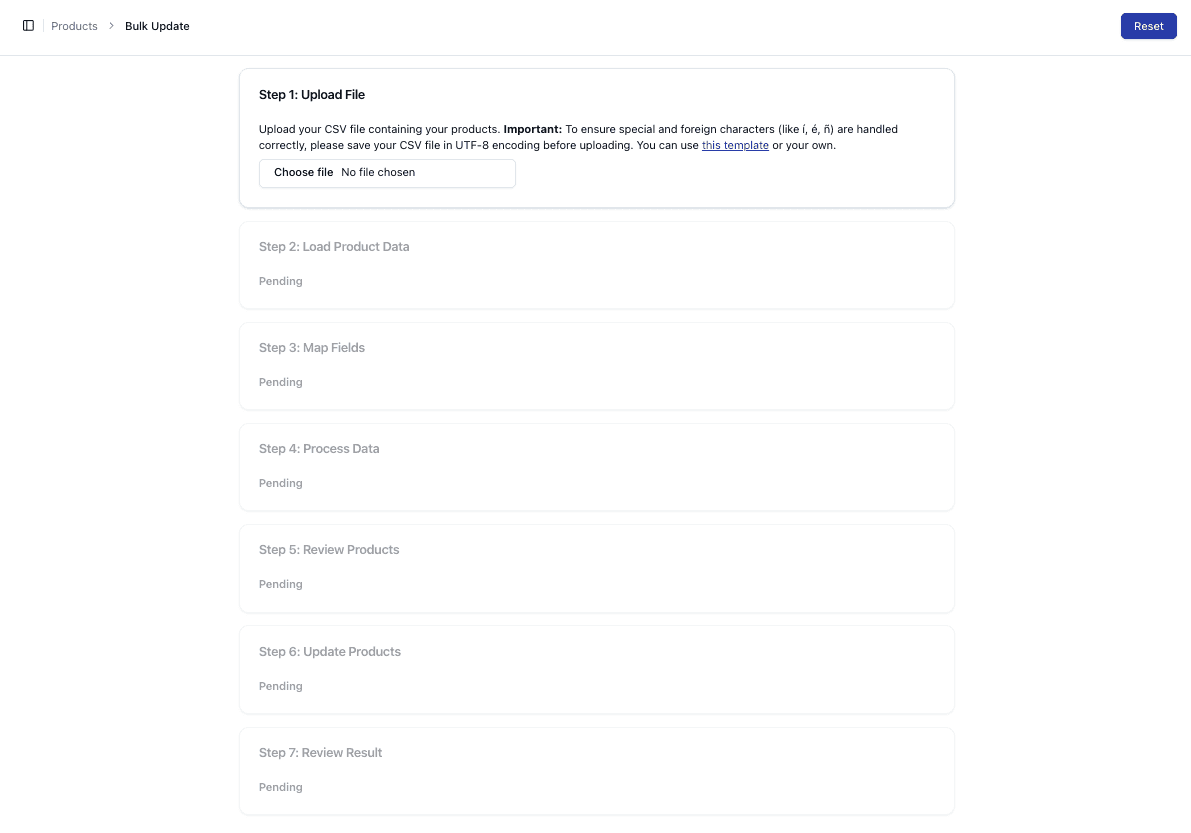
You can update or create inserts in bulk using a CSV upload process.
This follows a structured workflow:
• Upload file
• Load product data
• Map fields
• Process data
• Review products
• Update products
• Review results
This allows for efficient management of large numbers of inserts
Viewing Individual Inserts
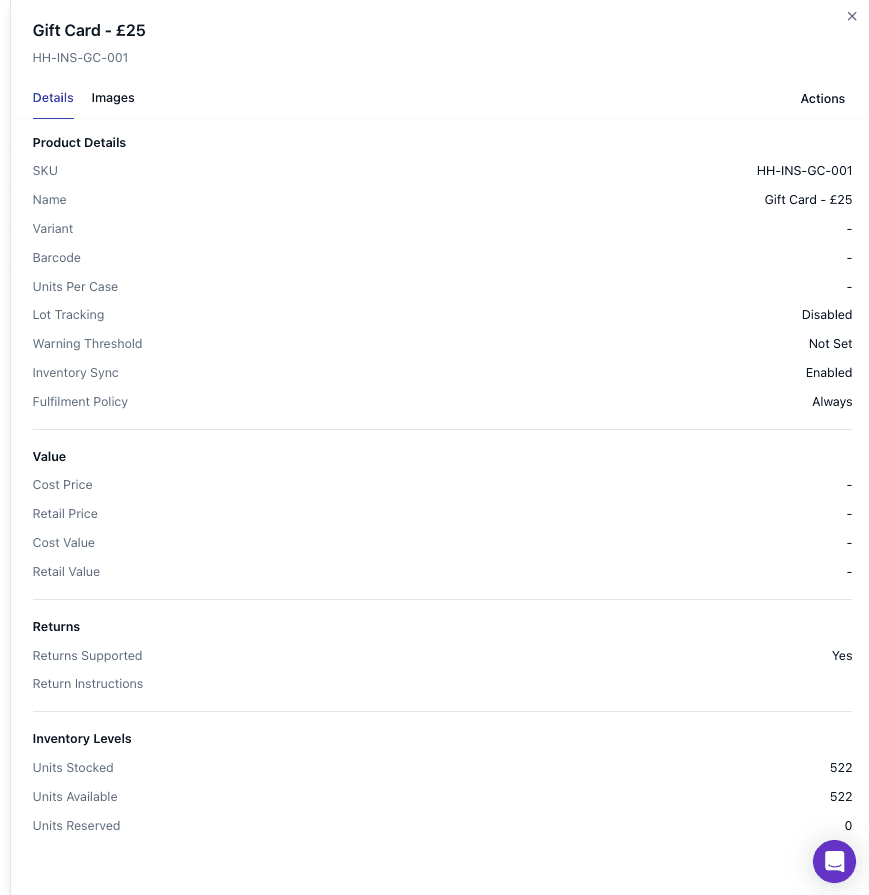
You can click into an insert to view detailed information.
This includes:
• Product details (SKU, name, variant)
• Inventory levels
• Returns settings
• Pricing and values
Important Notes
• SKU must be unique for each insert
• Bulk uploads must follow the correct CSV format
• Inserts behave like products in terms of inventory tracking
• Missing or incorrect data may cause upload errors
FAQs
Can I create multiple inserts at once?
Yes — both manually and via bulk upload
Can inserts be edited later?
Yes — inserts can be updated after creation