Creating a Gifting Campaign (Step-by-Step Guide)
Creating a Gifting Campaign
Creating a gifting campaign allows you to define a set of products that recipients can choose from, along with rules for how those gifts are fulfilled.
To create a campaign, navigate to the Gifting page and select “Create Campaign”.
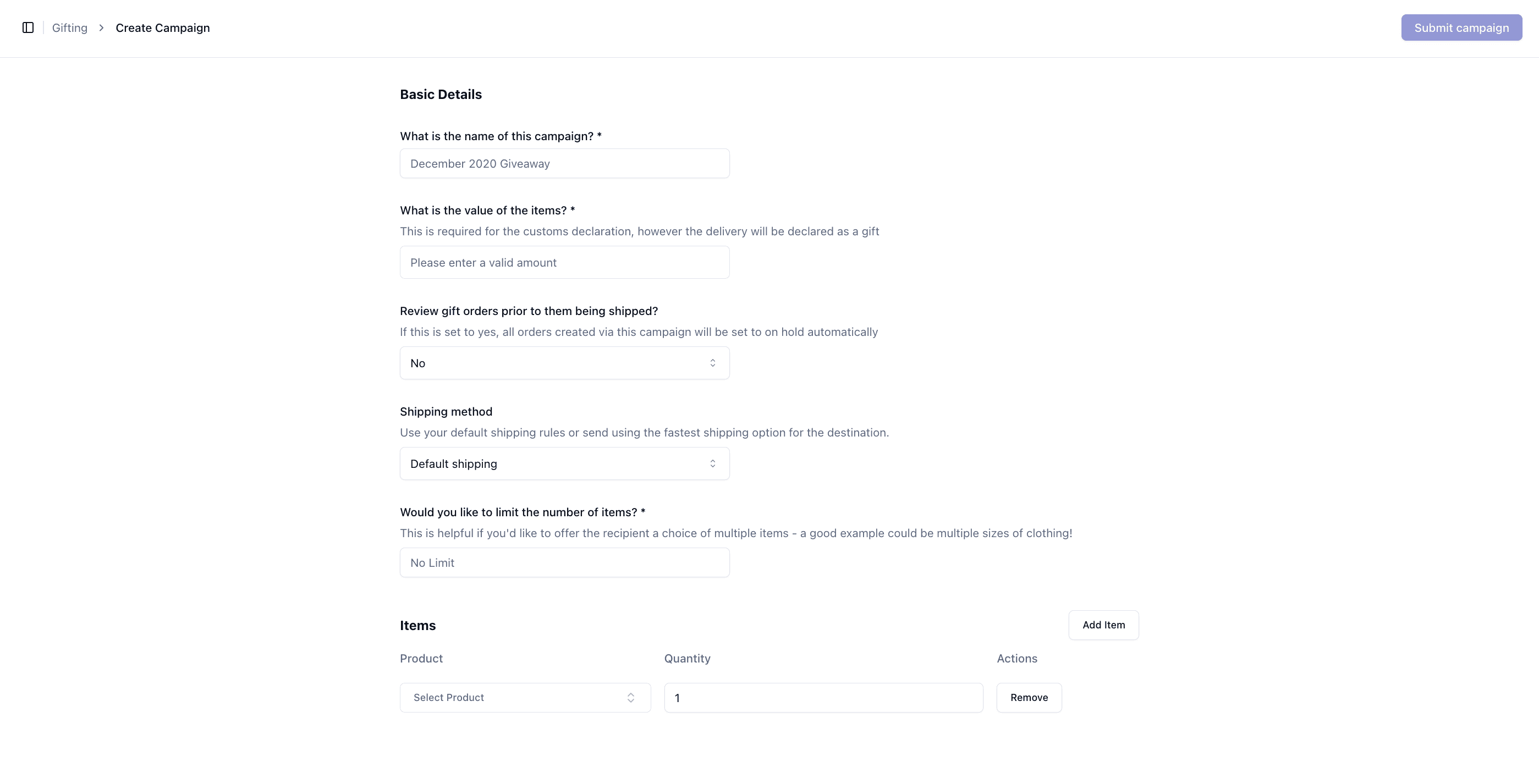
Step 1: Basic Details
Enter the core campaign information:
Campaign name → Used to identify the campaign
Item value → Required for customs declarations (even for gifts)
You can also configure:
Review orders prior to shipping → If enabled, orders will be placed On Hold for review
Shipping method → Determines how gifts will be delivered
Item limits → Restrict how many items a recipient can select
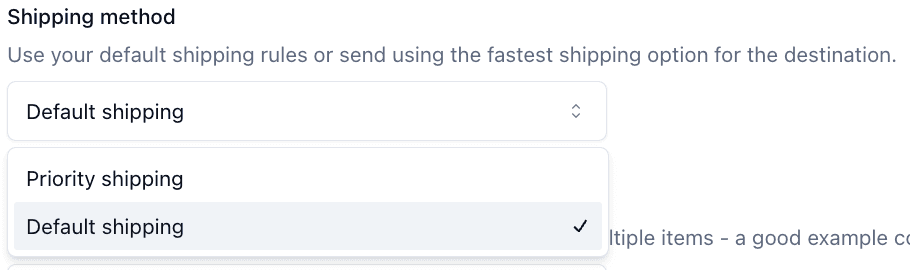
Shipping Method
Select how orders from this campaign should be shipped.
Default shipping → Uses your standard shipping rules
Priority shipping → Uses faster delivery options where available
Step 2: Add Items
Define the products included in the campaign.
For each item:
Select the product
Set the quantity
You can add multiple items to give recipients a choice when redeeming their gift.
Step 3: Submit Campaign
Once all details are complete, select “Submit campaign”.
The campaign will then:
Appear on the Gifting page
Be available for use immediately
Start tracking gift activity
What Happens After Creation
After the campaign is created:
• Gifts can be issued to recipients
• Recipients select their items from the campaign
• Orders are generated and processed through standard fulfillment
Within the campaign, you can:
Track gifts pending and redeemed
View recipient details
Access related orders
Close the campaign when no longer needed
Important Notes
Item value is required for customs, even for gifts
Enabling review will delay fulfillment until approved
Shipping method impacts delivery speed and cost
Campaigns must include at least one item to be valid